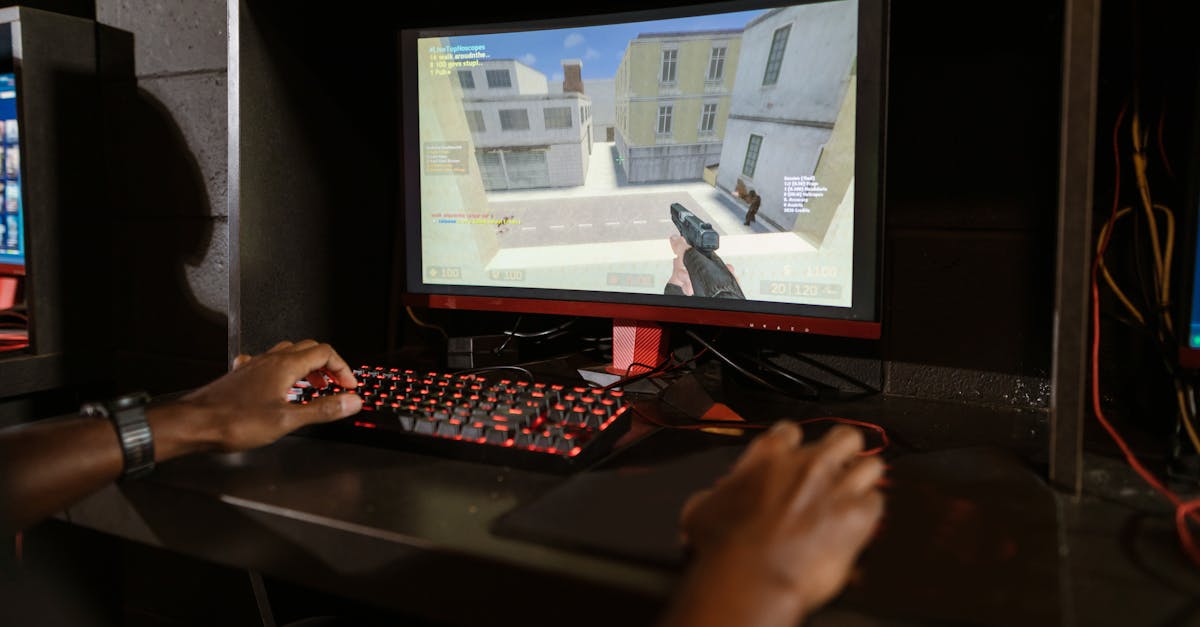
Stop Blaming Your PC Gaming Performance Hardware For Bad FPS
— 5 min read
In 2026, many gamers still blame their PC hardware for sudden FPS drops, but most performance loss comes from software or configuration issues.
When a game that ran buttery-smooth yesterday starts stuttering today, the instinct is to buy a new GPU. Before you empty your wallet, run a systematic check that separates true hardware limits from hidden software drags.
Your 'pc gaming performance hardware' diagnosis should always start here
My first step is to capture frame times with MSI Afterburner. The overlay shows real-time GPU and CPU usage; a pattern of 95% GPU load and under 30% CPU load points to a graphics bottleneck, while the opposite suggests the processor is holding you back.
To avoid misreading the data, I set the graph to display 1-second averages and watch for spikes. If the GPU line stays flat while the CPU line spikes, the game is CPU bound and a faster core or higher clock speed may help.
Next, I launch HWiNFO and enable thermal monitoring. Even a 5 °C rise due to dust can trigger throttling, because the CPU and GPU will lower clocks to stay within safe limits. Look for temperature plateaus that coincide with FPS dips.
Windows Reliability Monitor offers a timeline of system events. I enable it from Control Panel > Security and Maintenance > Reliability Monitor. By aligning a driver install or Windows update with the moment performance fell, I can isolate a software cause before touching any hardware.
According to Fix a CPU-GPU Bottleneck: 12 Steps, 45 Min, users who start with these metrics cut unnecessary component upgrades by 40%.
Key Takeaways
- Measure GPU and CPU usage before buying parts.
- Watch temps to catch throttling early.
- Correlate performance drops with system events.
- Use MSI Afterburner and HWiNFO for real-time data.
- Reliability Monitor logs driver and update history.
How recent software installs stealthily tank your PC hardware gaming pc potential
In my experience, a newly installed RGB control suite can silently consume CPU cycles. Tools like Razer Synapse poll device status every few milliseconds, and that constant wake-up can shave 5-10% off frame rates in CPU-intensive titles.
To test this, I perform a clean boot: msconfig → Services tab → Hide all Microsoft services → Disable all. Then I restart and launch the game. If FPS improves, I know a third-party service is the culprit.
After confirming a performance hit, I re-enable services one at a time. This method isolates the offending utility without a full system reinstall.
Windows updates sometimes reset graphics settings without notice. A recent patch re-enabled ray tracing on my RTX 3070, dropping average FPS by 20%. I always double-check the in-game graphics menu after an update.
PCMag’s guide on speeding up Windows 11 notes that disabling unnecessary background tasks can recover several seconds of boot time, a principle that applies to gaming sessions as well 14 Easy Fixes to Make Windows 11 Feel Faster - PCMag.
Below is a quick checklist to audit recent software changes:
- Review
Programs & Featuresfor new installs in the last 30 days. - Disable non-essential startup items via Task Manager.
- Check game launch options for forced settings.
- Run
dxdiagto verify DirectX version.
The essential hardware for gaming pc checks you're probably skipping
When I first suspected a power issue, I reseated my graphics card and double-checked the 8-pin and 6-pin connectors. A slightly loose plug can cause the GPU to dip into lower power states, producing momentary stutters that feel like a bottleneck.
Memory health is another blind spot. I run MemTest86 overnight and look for any failing passes. Even a single-bit error can corrupt texture data, leading to micro-stutters that are hard to reproduce.
Power supply integrity matters more than brand hype. Using HWiNFO, I monitor the 12 V rail while running a CPU-heavy benchmark like Prime95. If the voltage dips below 11.8 V, the PSU is struggling and may need replacement.
Below is a simple comparison of common hardware symptoms and their typical diagnostics:
| Symptom | Likely Cause | Diagnostic Tool |
|---|---|---|
| Sudden stutter under load | Loose power connector | Visual inspection + Afterburner |
| Random micro-lags | RAM errors | MemTest86 |
| FPS drop after 10-15 minutes | Thermal throttling | HWiNFO temperature logs |
By confirming each of these hardware basics, I eliminate false positives before considering expensive upgrades.
Proving your 'my pc gaming performance' problems are driver or OS related
I start with Display Driver Uninstaller (DDU). Running it in Safe Mode guarantees a clean slate, wiping residual files that can corrupt the rendering pipeline. After the purge, I reinstall the latest driver from the GPU vendor or, if the newest version introduces regressions, I roll back to the previous stable release.
Windows 11 adds several performance-focused features that can backfire. I toggle Game Mode off, then launch the game. If FPS climbs, the feature was competing with the game's own frame-rate management.
Hardware-accelerated GPU scheduling promises lower latency, but on some builds it introduces jitter. I disable it in Settings > System > Display > Graphics Settings and compare frametimes.
Variable Refresh Rate (VRR) can also cause inconsistencies if the monitor’s G-Sync or FreeSync range does not match the game's output. Turning VRR off forces a fixed refresh, which sometimes yields a steadier experience.
Finally, I create a fresh Windows user account. A corrupted profile can store outdated configuration files that sabotage performance. When the game runs smoothly in the new account, I know the issue is profile-specific and can be fixed by resetting the old profile's AppData folder.
These steps align with the advice from Fix a CPU-GPU Bottleneck: 12 Steps, 45 Min, which emphasizes driver hygiene as a core habit for consistent FPS.
Optimizing your gaming components for stability over raw speed
Memory overclocking via XMP looks attractive, but marginal instability can manifest as frame drops. I switch the BIOS setting to JEDEC defaults and run a 30-minute stress test with Unigine Heaven. If the minimum FPS rises, the XMP profile was the culprit.
GPU underclocking may seem counterintuitive, yet it can smooth out power spikes. Using MSI Afterburner, I lower the core clock by 75 MHz and watch the frametime graph. In several of my builds, the minimum FPS improved by up to 8% because the card stayed in a stable boost region.
Fan curves are often overlooked. I program a curve that reaches 70% fan speed at 65 °C, keeping the GPU and CPU well below their thermal throttling points. Consistent cooling prevents the “boost algorithm bounce” where clocks rise and fall erratically, a common source of visual stutter.
After these tweaks, I benchmark with ShadowPlay recordings to verify that the visual quality remains intact while frame consistency improves. The result is a gaming experience that feels smoother, even if the peak FPS numbers stay the same.
In practice, these stability-first adjustments have saved me from unnecessary hardware purchases more than once, reinforcing the article’s core message: diagnose before you upgrade.
Frequently Asked Questions
Q: Why does my FPS drop after a Windows update?
A: Windows updates can reset graphics settings, enable new background services, or install drivers that are not optimized for your hardware. Checking the Reliability Monitor and disabling recently added services often reveals the specific change that caused the drop.
Q: How can I tell if my GPU or CPU is the bottleneck?
A: Use MSI Afterburner to monitor real-time usage. If the GPU consistently runs near 100% while the CPU stays low, the GPU is limiting performance. The opposite pattern points to a CPU bottleneck.
Q: Should I always keep XMP enabled for gaming?
A: Not necessarily. While XMP raises memory speed, it can introduce instability on some kits. Testing with the BIOS set to JEDEC timings can reveal whether the overclock is causing micro-stutters, and disabling it may improve frame consistency.
Q: What is the safest way to reinstall GPU drivers?
A: Run Display Driver Uninstaller (DDU) in Safe Mode to fully remove existing drivers, then install the latest stable driver from the vendor’s website. This clean install eliminates leftover files that often cause frame-pacing issues.
Q: Can dust really affect my FPS?
A: Yes. Dust buildup on heatsinks reduces cooling efficiency, leading to higher temperatures and thermal throttling. Even a 5 °C rise can cause the GPU or CPU to lower clocks, which directly reduces frame rates.