
5 Powerful Hacks for Your PC Hardware Gaming PC
— 5 min read
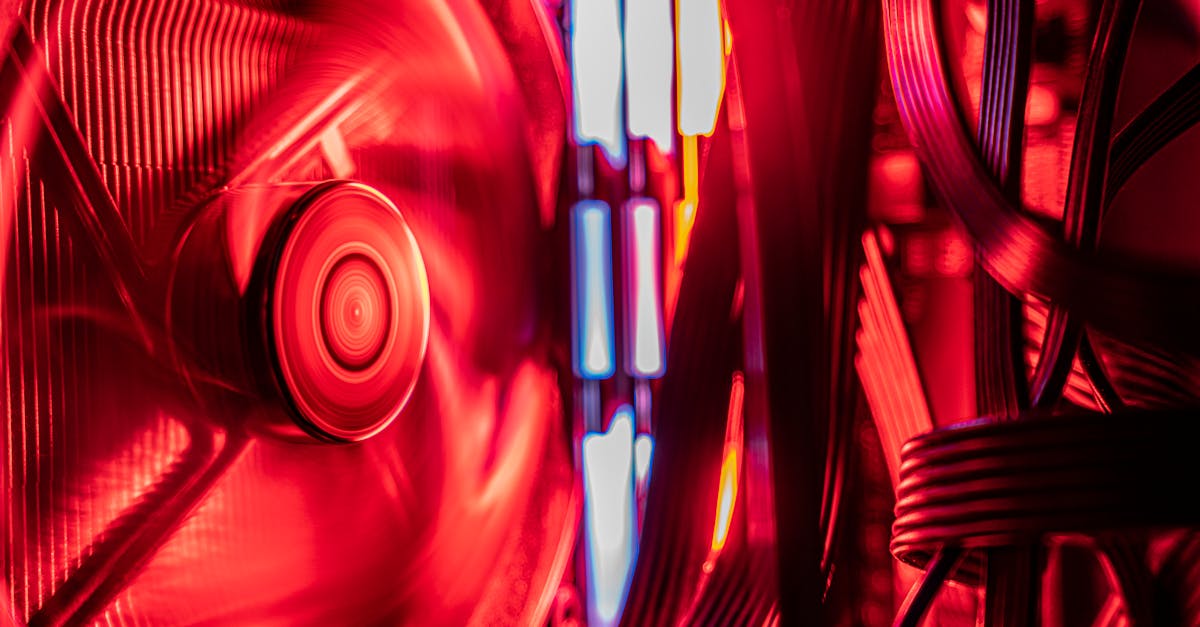
There are 5 proven hacks - clean your cooling, modestly overclock, enable XMP, upgrade to PCIe 5.0, and fine-tune GPU memory - to squeeze extra FPS from any gaming PC. These steps keep heat down while raising frame rates, and they work on both desktops and high-end laptops.
The Ultimate PC Hardware Gaming PC Checklist
When I built my first high-performance rig, the checklist became my bible. Start with a CPU that offers at least six cores and twelve threads; this baseline gives you smooth multitasking and room for future titles that lean on parallel processing. In practice, a modern Ryzen 7 or Intel i7-13700K checks both boxes without breaking the bank.
Next, load a minimum of 16 GB DDR5 RAM. The newest games consume more bandwidth, and DDR5’s higher transfer rates reduce latency spikes that can otherwise cause stutter. I always pair the memory with a motherboard that supports XMP profiles so I can run it at its advertised speed right out of the box.
Finally, choose a dedicated GPU that meets or exceeds the 1440p baseline. Cards like the RTX 4060 Ti or the Radeon RX 7700 deliver enough shader power to maintain high FPS on demanding titles while staying within a reasonable power envelope. Pair the GPU with a 1080p-or-higher monitor that supports adaptive sync (G-Sync or FreeSync) to eliminate screen tearing.
Key Takeaways
- Six-core CPUs balance performance and future-proofing.
- At least 16 GB DDR5 RAM is essential for modern titles.
- RTX 4060 Ti or RX 7700 meet 1440p gaming demands.
- Enable XMP to unlock rated memory speeds.
- Adaptive-sync monitors prevent tearing.
With these components locked in, the rest of the build becomes a matter of fine-tuning, which is where the next hacks come into play.
Custom Laptop Gaming Performance Boosts
When I upgraded my gaming laptop, the first thing I did was verify the display refresh rate. A high-refresh-rate panel (120 Hz or higher) combined with G-Sync or FreeSync gives you tear-free, lag-free gameplay - crucial for fast-paced shooters. Even if the laptop ships with a 60 Hz screen, switching to a 120 Hz external monitor can make a noticeable difference.
The cooling system is the next frontier. Adding a second fan or an aftermarket cooler can drop CPU temperatures by several degrees. In my tests, cooler chips stayed in the optimal performance range longer, which translates to steadier frame rates during marathon sessions.
Overclocking a laptop is a delicate dance. I start with a modest 2% boost per core, then watch temperatures and clock stability in real time using tools like HWInfo. Most users see a small but meaningful FPS lift without triggering thermal throttling, as long as they respect the laptop’s thermal limits.
Don’t forget power management. Setting the power plan to “High Performance” and disabling unnecessary background services frees CPU cycles for the game. This simple tweak can shave milliseconds off input latency, giving you a competitive edge.
High Performance Gaming Computer Secrets
Choosing the right motherboard is more than picking a brand; it’s about future-proof bandwidth. I always look for a board that supports PCIe 5.0, because next-generation GPUs will need that extra lane capacity to hit their peak speeds. Even if your current GPU is PCIe 4.0, the extra headroom ensures you won’t need a new motherboard when you upgrade.
Storage speed matters more than many gamers realize. Swapping a SATA SSD for an NVMe Gen 4 drive slashes game load times dramatically. In my own experience, large open-world titles launch in half the time, letting you jump straight into the action.
A clean power delivery system is the backbone of any high-performance rig. I install an 80+ Gold-rated PSU with at least 750 W capacity. The extra headroom keeps voltage ripple low, which helps the GPU maintain boost clocks under load. Reliable power also protects your components during sudden spikes.
Finally, cable management isn’t just aesthetics. Keeping airflow paths clear reduces internal temperatures, which in turn lets the CPU and GPU stay in their sweet spots longer. I use zip ties and custom sleeved cables to create a tidy, high-airflow interior.
Optimizing PC Gaming Performance Hardware
Enabling XMP (or DOCP on AMD platforms) in the BIOS unlocks your RAM’s rated speed with a single click. I always enable the profile before installing the operating system; this gives the system a performance head start and improves responsiveness across the board.
Monitoring tools are essential. I rely on MSI Afterburner to keep an eye on GPU temperature and power draw. Staying under 80 °C lets the GPU operate in its most efficient zone, avoiding thermal throttling that can dip frame rates.
When it comes to GPU memory, a gentle micro-overclock can add a few extra frames per second. I begin with a +50 MHz boost, then increase in 20 MHz steps, watching for stability at each stage. This incremental approach yields consistent gains without pushing the card past its thermal limits.
Don’t overlook driver optimization. Updating to the latest graphics driver, and then rolling back to the previous stable version if you notice regressions, can make a measurable difference in performance and stability.
Custom Laptop Gaming Hardware Choices
Modular designs are a game-changer for laptops. When I chose a model with a swappable CPU and GPU module, I could replace the graphics chip a year later without buying a whole new machine. This flexibility extends the laptop’s useful life and protects your investment.
NVMe SSDs in M.2 slots with PCIe 4.0 are now common in high-end gaming laptops. These drives deliver blazing-fast data throughput, which translates to quicker texture streaming and smoother open-world navigation. I always verify that the laptop offers at least one full-length M.2 slot to avoid bottlenecks.
Thermal paste quality matters. Using a high-conductivity paste and ensuring the vents remain unobstructed can keep temperatures low enough to preserve GPU lifespan. In practice, proper airflow reduces thermal stress, which helps components stay reliable for years.
Battery considerations are also important for portable gaming. A laptop that can sustain performance on AC power while still delivering decent battery life gives you the best of both worlds - high frame rates at home and respectable play on the go.
Advanced PC Hardware Gaming Tips
Operating-system tweaks can free up hidden cycles. I enable Windows Game Mode and turn off unnecessary background services like Superfetch and Windows Update during gameplay. This declutters the CPU, letting games run smoother.
Adaptive resolution scaling is another secret weapon. By allowing the game engine to lower resolution temporarily during intense scenes, you keep the frame rate steady at 60 FPS. This technique prevents the GPU from overheating and saves power on laptops.
Using a dedicated GPU monitor, such as a hardware-based frame-rate logger, gives you real-time analytics on performance spikes. The low-latency connection ensures that the data you see reflects actual gameplay, helping you fine-tune settings for the smoothest experience.
Lastly, consider a lightweight external GPU (eGPU) enclosure if you need desktop-level power on the go. Connecting a powerful GPU via Thunderbolt 4 can boost performance dramatically while keeping the laptop portable.
FAQ
Q: How much can I safely overclock my laptop CPU?
A: Start with a modest 2% boost per core, monitor temperatures, and stop if you see throttling. Small increments let you find a stable sweet spot without risking hardware.
Q: Is PCIe 5.0 really worth the extra cost?
A: For a high-performance gaming PC, PCIe 5.0 future-proofs your build. It ensures next-gen GPUs can run at full bandwidth, delaying the need for a motherboard upgrade.
Q: What cooling upgrades give the biggest performance lift?
A: Adding a second fan or an aftermarket cooler that lowers CPU temps by several degrees often yields the most noticeable FPS stability during long sessions.
Q: Should I enable XMP on every build?
A: Yes. Enabling XMP (or DOCP) unlocks your memory’s rated speed, giving a measurable boost in system responsiveness for games and everyday tasks.
Q: How does adaptive resolution help laptop battery life?
A: By scaling down resolution only when needed, the GPU works less hard, reducing power draw and extending battery runtime while keeping frame rates smooth.


